




Tip: Click the images to enlarge the details.
Overview
Leads can automatically enter the pipeline from LinenFinder or be added manually as opportunities via LinenFinder LeadFlow.
This article outlines the pipeline tool and provides instructions on manually adding and managing opportunities in the LinenFinder LeadFlow site.
Pipeline Tool
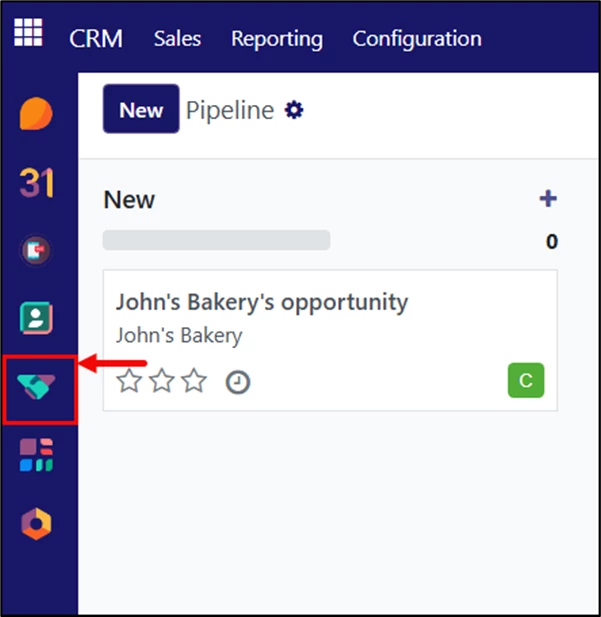
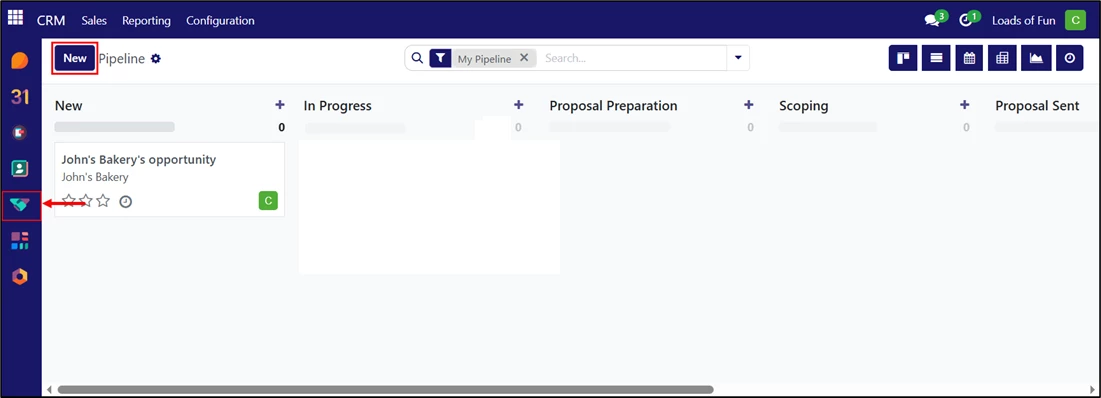
Log in to your LinenFinder LeadFlow account and open the CRM screen from the left-side navigation menu.
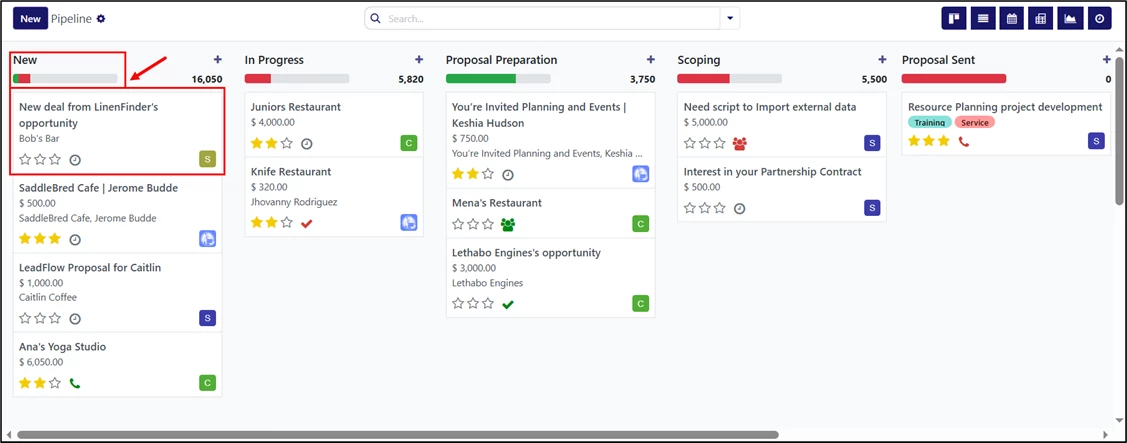
This screen provides a visual view of all sales opportunities as they move through each stage of the sales process. It helps to track progress, prioritize deals, and quickly understand where each opportunity stands.
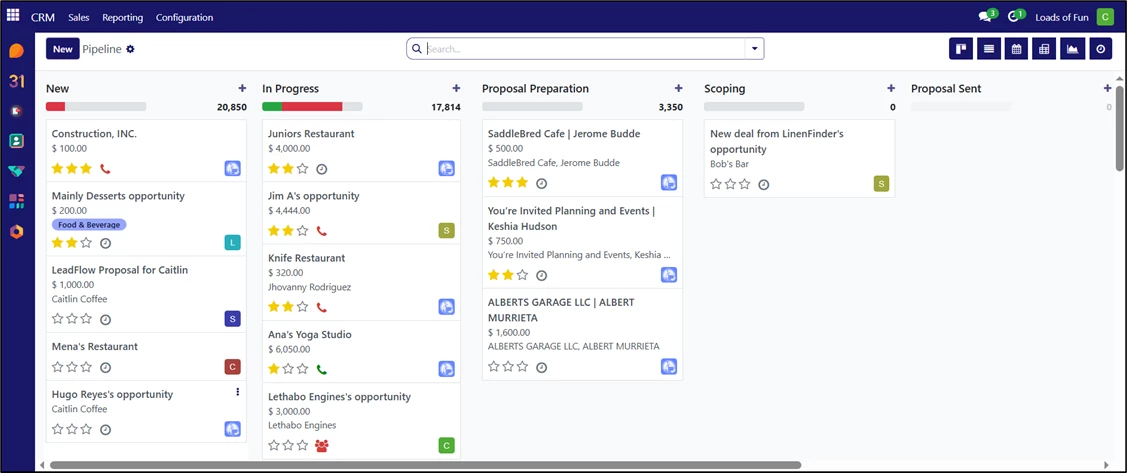
If leads have been automatically imported from LinenFinder, they will appear in the left-most column of the pipeline. In this example, that is the “New” column.
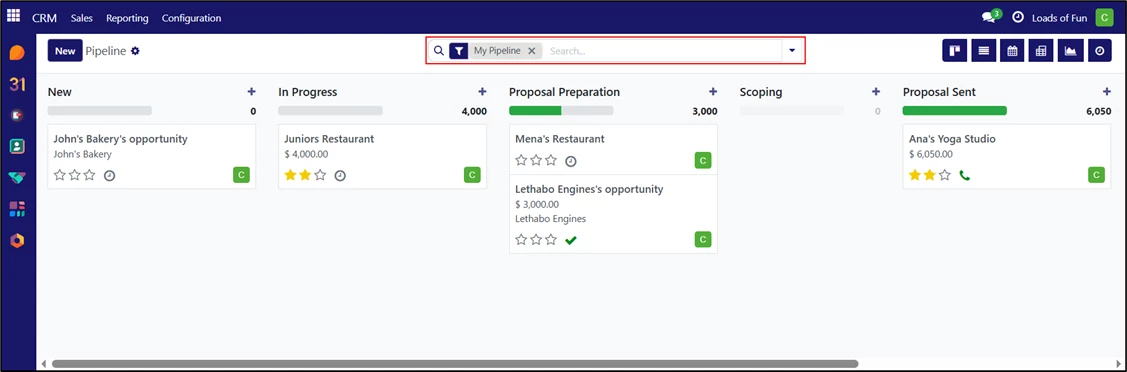
The screen will default to showing results using the “My Pipeline” filter, which displays only opportunities assigned to your user.
If your profile allows, use the dropdown at the top to filter opportunities as desired.
Pipeline Filter Examples
Pipeline Screen Showing All Opportunities – “My Pipeline” Filter Removed:
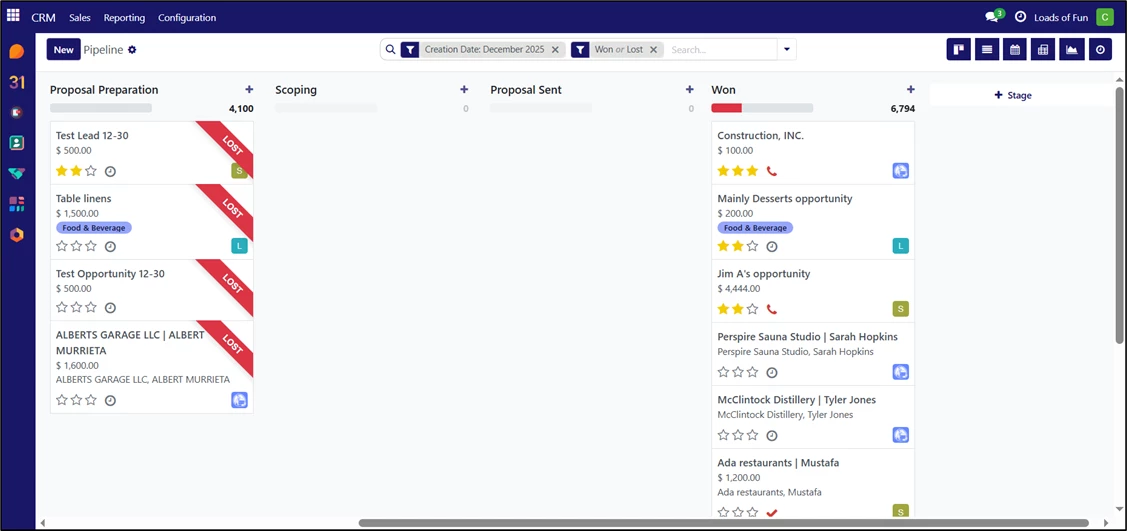
Pipeline Screen Filtered by Won & Lost Opportunities Created in December 2025:
Pipeline Layout Options
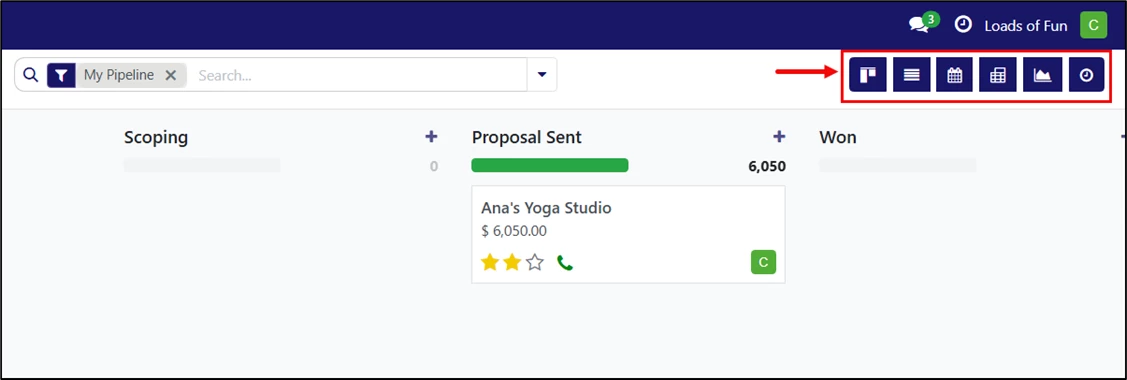
The default layout is Kanban-style, with columns for each stage of the sales process. The top-right portion of the screen contains additional layout options that work with the main filter dropdown.
List View
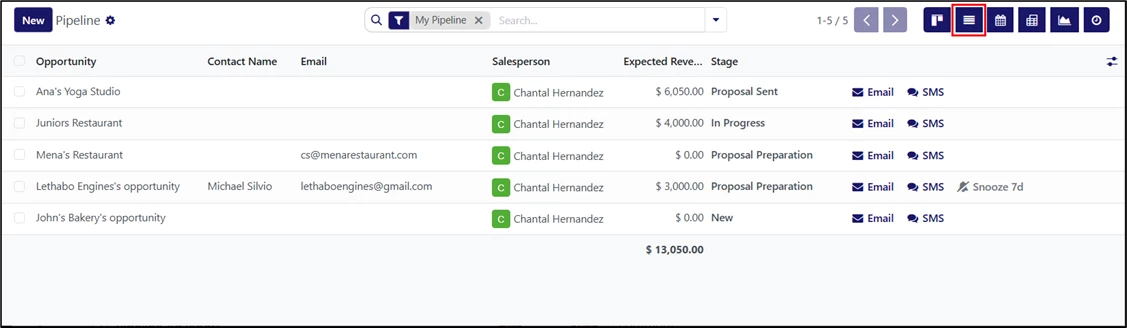
The List View provides a concise layout showing the opportunities in the pipeline. You may adjust the filters as needed to view different types of opportunities.
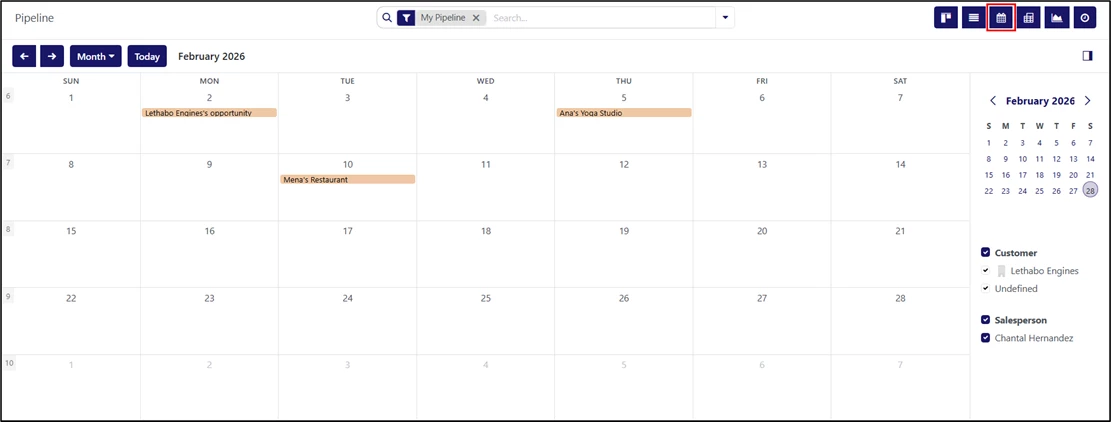
Calendar View
When viewing opportunities in the Pipeline, you can use the Calendar View to quickly review upcoming activities/actions for specific opportunities.
Pivot View
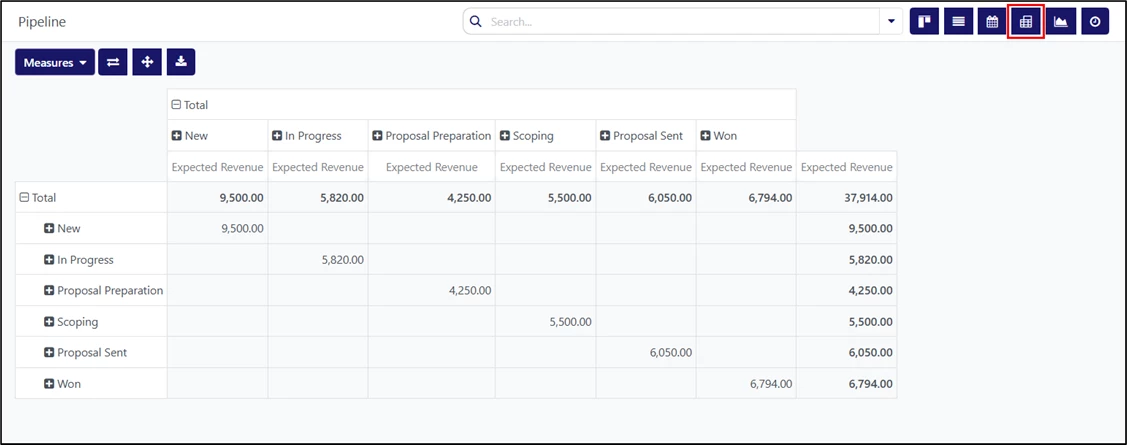
The Pivot View shows results in a table format. This is a highly flexible reporting layout.
Pivot View for All Opportunities, Grouped by Stage:
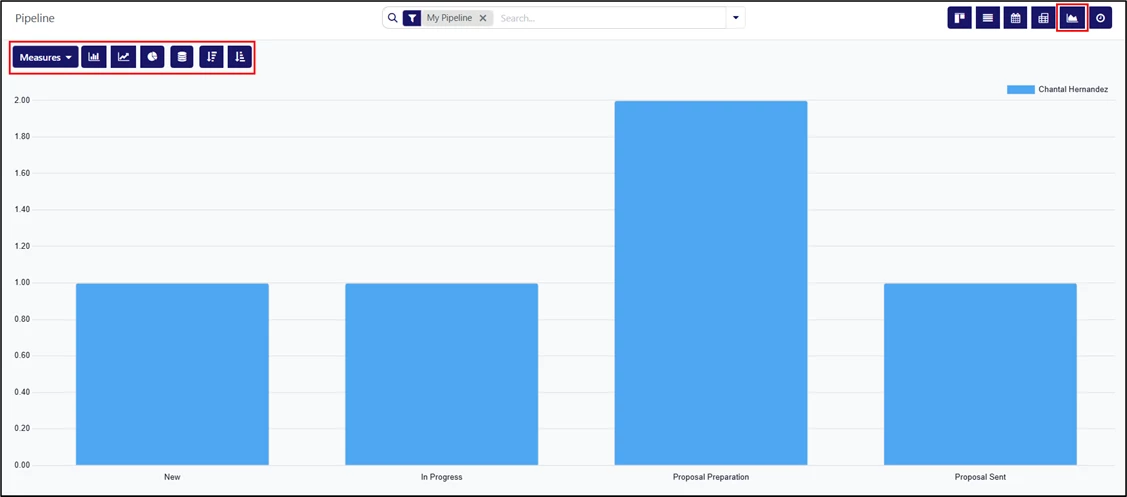
Graph View
This layout shows opportunities in a graphic format that can be further tailored to display results for expected revenue, prorated revenue, count, and more. Other options include viewing the information in line chart, pie chart, stacked chart, and descending/ascending bar chart formats.
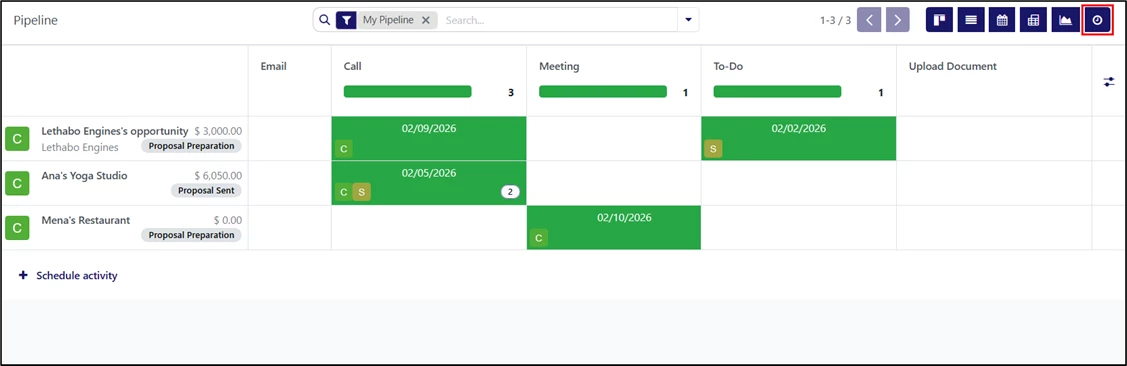
Activities
Use this layout to quickly review and add scheduled activities. You may adjust the filters as needed to show different types of opportunities.
Adding an Opportunity
To add a new opportunity in the pipeline, click “New.”
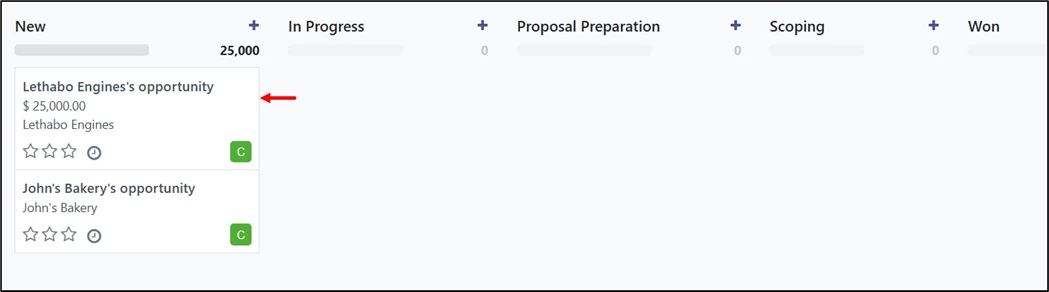
Enter the company or contact details and expected revenue if needed. Use the stars to indicate priority: one star for Medium, two for High, and three for Very High. Click “Add,” or press Enter on your keyboard.

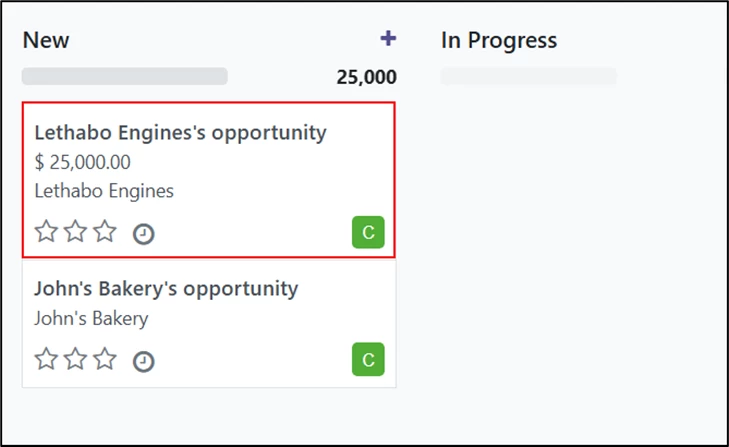
The opportunity is now part of your pipeline.
Editing an Opportunity
When viewing the pipeline, click on an opportunity to edit it.
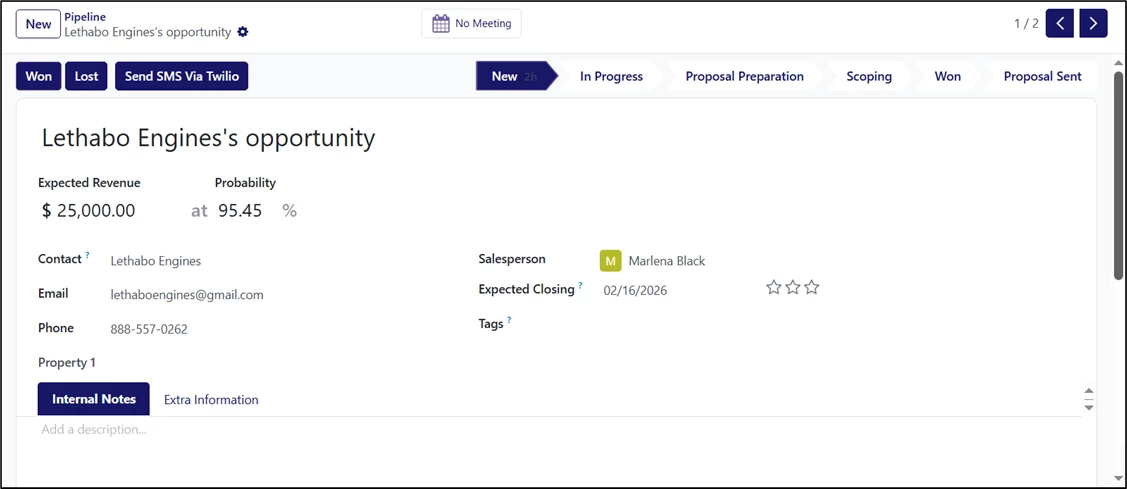
From the opportunity edit screen, you can:
- Update the title.
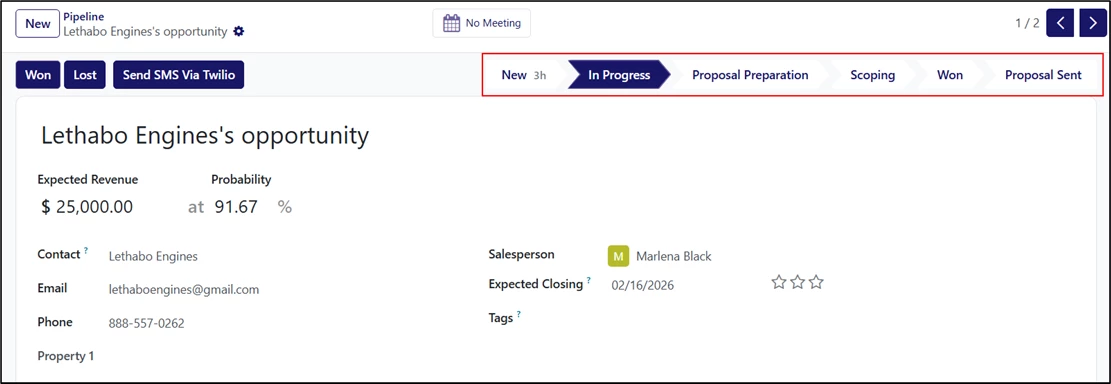
- Enter or update the Expected Revenue and its probability.
- Update the contact information.
- Assign another salesperson (the system automatically assigns the user who created the opportunity).
- Specify an expected closing date, add tags to categorize the opportunity, and enter or adjust the priority.
- Add notes, and more.
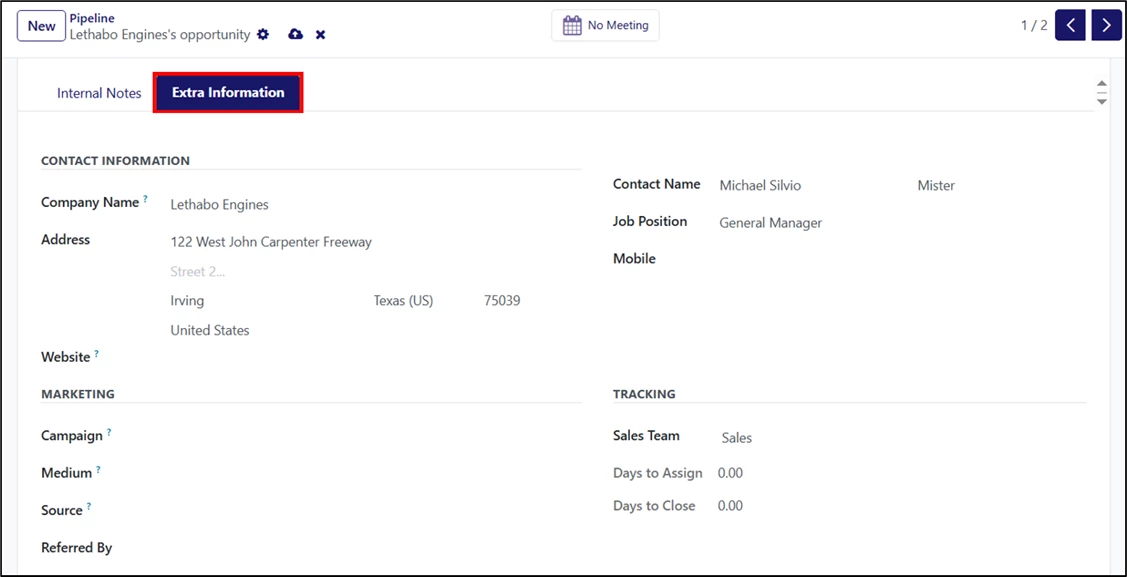
The Extra Information tab contains fields to update additional company details, enter marketing information, assign a sales team, and specify a timeframe for assigning and closing the opportunity.
Managing Pipeline Status
Once an opportunity is assigned, it can be moved through the pipeline for the selected salesperson. The pipeline can be filtered by status.
Status changes can be made using two methods:
1. Selecting a status (e.g., New, In Progress, Won, etc.) from the options at the top of the opportunity edit screen.
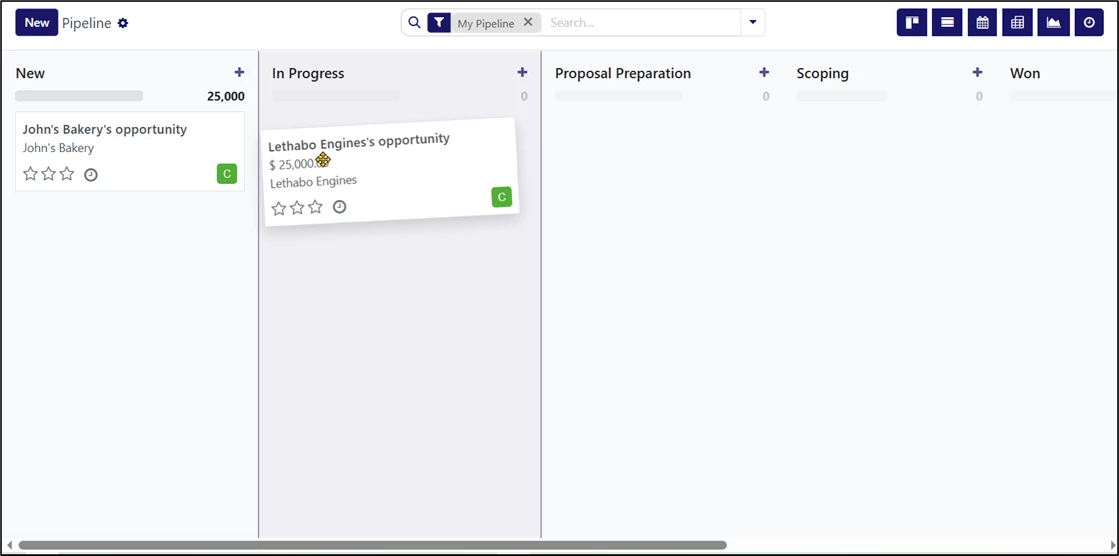
2. Dragging and dropping the opportunity into a different status column from the pipeline.